
1: Add a logo to the account:
- Log in as the EB user (not root)
- (eb_____, pass: support_____)
- Add the logo
- In right hand corner, click "my media"
- Add media --> choose file --> click public (required so all users can see the logo on reports)
- Save the GUID number
2: Login to root:
- Log into ROOT
- (user: kbest, pass: _______)
- Instance: check "Map Data" to determine which EB website they use:
- Example: https://go.smgbooking.com
- Search --> Find Venue
- Find Templates Tab
- Add Template
- Name Template
- *Can't change template name OR delete template
- Copy and paste in XML code
XML CODE (template info) *see attachment to this article with XML code
- The code is also saved on Wiki
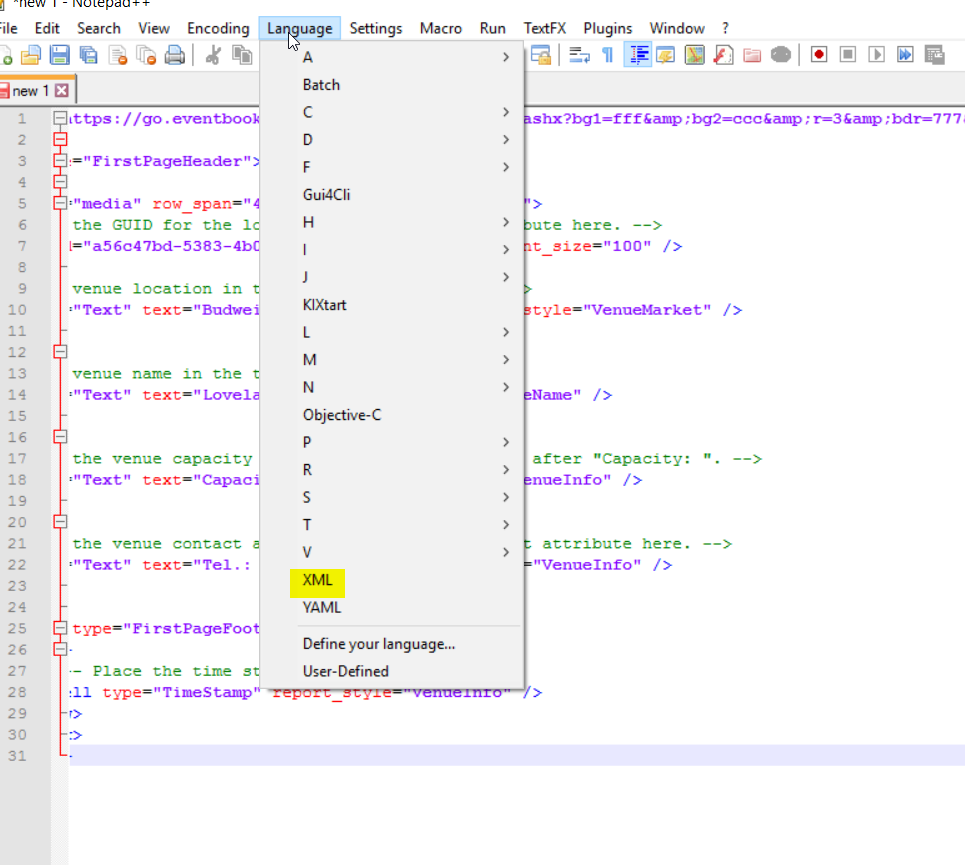
- Copy / paste code into notepad ++
- Click language tab ---> Select XML
Edit Code:
Find / Replace GUID: (logo ID #)
Venue Name:
Venue Location:
Capacity:
Phone #:
Copy / paste XML code into template (on root)
Click save
To TEST out the header and make sure it works correctly:
- Navigate to an event detail page for the venue
- Click Report
- Edit (pencil / paper)
- Output options
- Select Header
- Look at report that shows on screen
- DON’T CLICK SAVE!
- If report looks good, awesome!
- If it looks bad, check the code!
- Make sure the code starts and ends with this:
</template_setting>
Comments
0 comments
Article is closed for comments.