
Setup User Access to a Corporate View
The purpose of this document is to detail configuring a user for access to a corporate report bucket so that event data from multiple venues in a corporate structure can be viewed all at once.
- Start by selecting the company that the user is located in
- Click on the Corporate Hack Tab
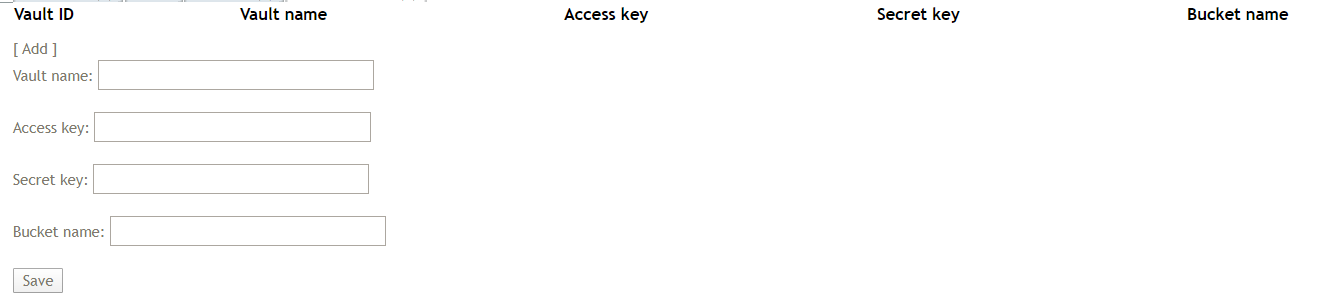
Enter the Vault Name, Access Key, and Secret Key. This information can be found in Last Pass and each corporate group has their own entry.
The Bucket Name should be the same as the Vault Name.
Once this has been added open the user's detail page and go to the Corporate Hack tab.
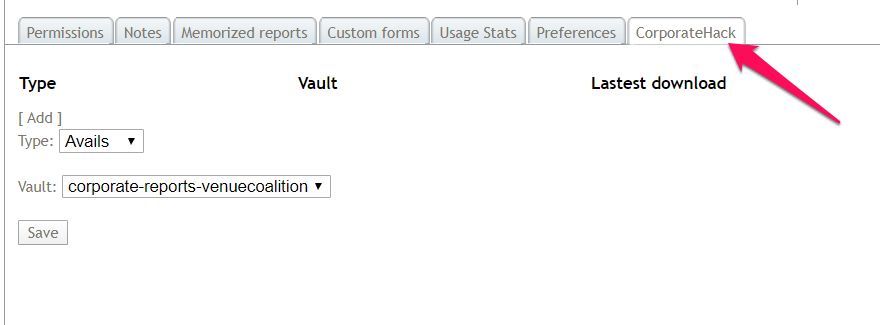
The Vault name will appear for each corporate bucket that has been setup on the account (more than one can be configured).
Select Avails and the appropriate Vault, then click Save.
Then if the individual needs to be able to see the full event names you can repeat the process with the Internal option.
It will take approximately 24 hours for the data to appear in the users Corporate View.
The following day backdoor into the user's account.
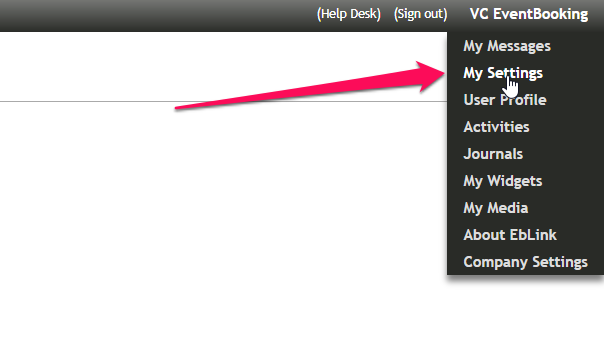
Mouse over the username and select My Settings.
From the left hand menu select Corporate View Setup
Then click the blue Edit link to edit the names and abreviations for each venue.
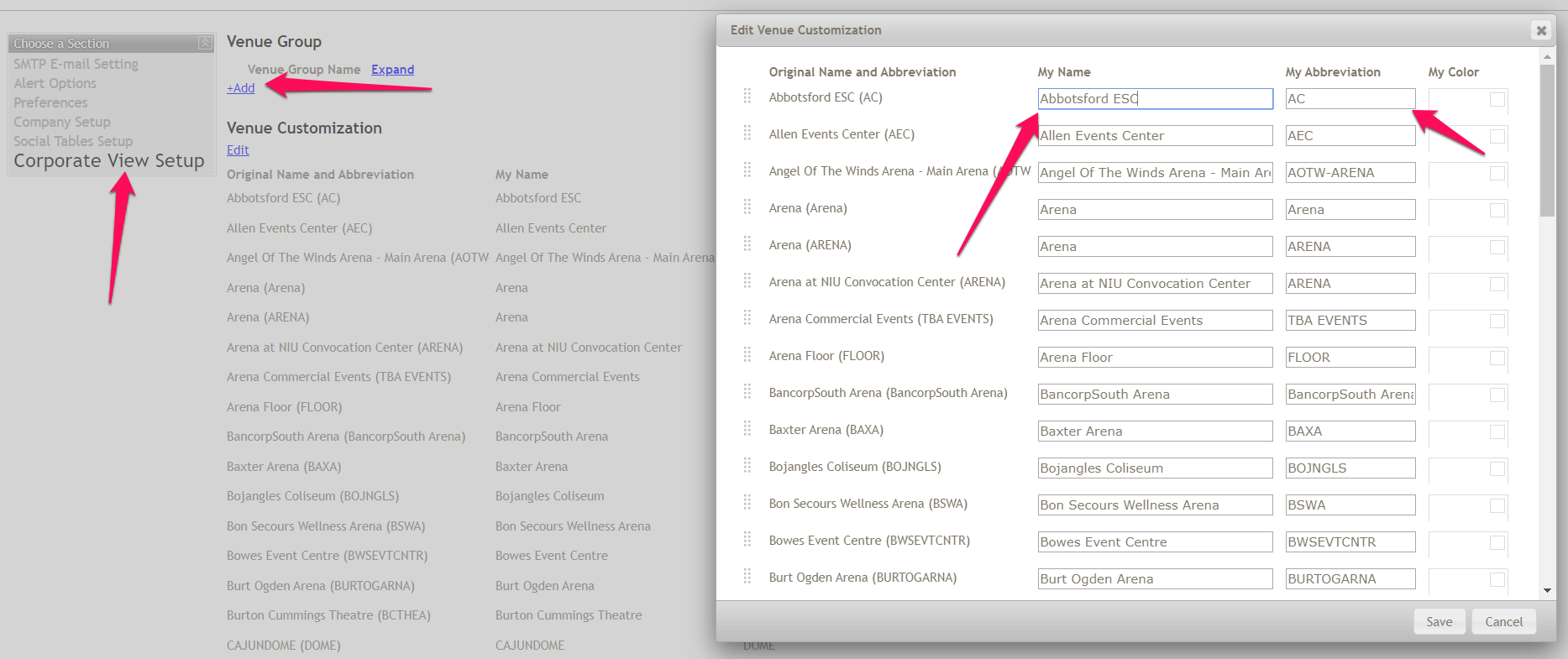
The name will appear as the calendar name and can be generic such as "Main Arena". Make sure to rename the calendar to the name of the venue to clearly diferentiate each one and identify what type of space it is (ie. arena, theatre, ice rink).
Save the change and go to the users Corporate View to verify the name change..
Comments
0 comments
Article is closed for comments.