
Report Visual Styles
This topic describes how to combine appearance properties into styles and apply them to report elements. There are many different elements within a report that you can control the look/style of, and these instructions will walk you through some of those options.
Create a Report Style
In order to create a visual style in your report, you must first select the cell, row, or table that you would like to add the style to. Then you may use of one the methods below to apply the styling:
- Use the Properties Panel
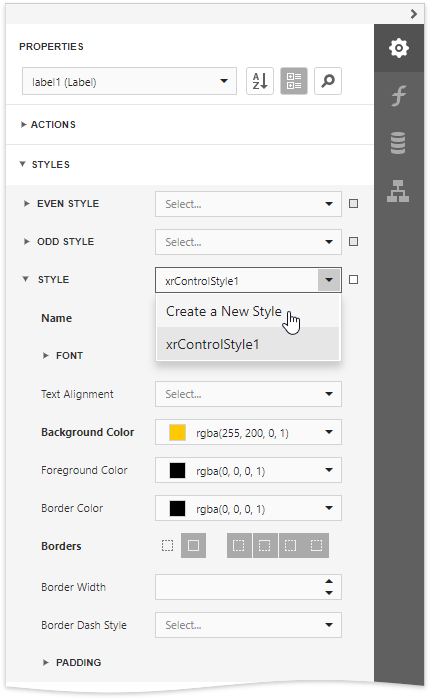
Expand the Properties panel's Styles category, click the drop-down list for the Style property, and select Create a New Style.
- Use the Report Explorer
Switch to the Report Explorer panel, select the Styles node and click the plus button to add a new report visual style.
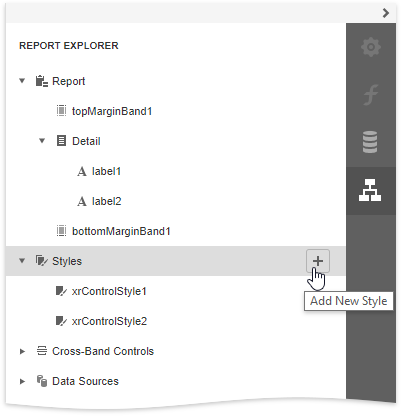
To access the collection of added report visual styles, expand the Styles category in the Report Explorer.
Assign a Style to a Report Element
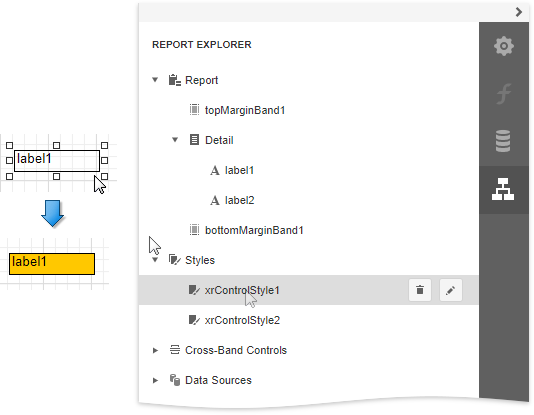
Drag a report style from the Report Explorer onto a report control. This assigns the style to the report element's Style property.
Assign Odd and Even Styles
You can also use the Odd Style and Even Style properties to apply different styles to alternating rows in a report, such as any colors, font, size, borders, and more.
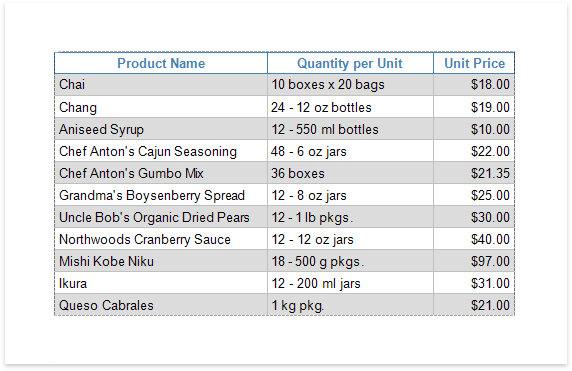
- Even Styling: takes effect for the first element or row within your report and then every other after (Example shown in the screenshot below)
- Odd Styling: skips the first element or row and then affects every other after that (preferred method if the header of the group/report has any coloring)
Either of these Styles can be used on any report and there is no wrong choice between the two. These are typically used when there is a lot of data that runs across the page because it helps the readers keep track of which line they are on.
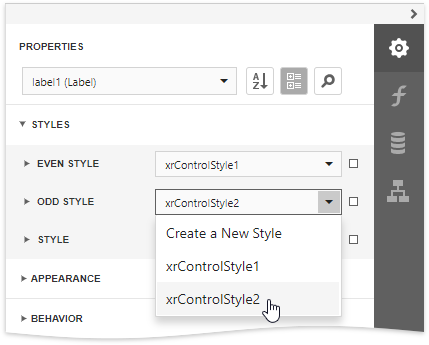 Even Style: Shaded grey background
Customize a Style
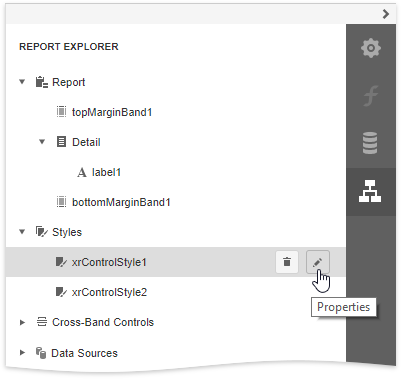
Select a style and click the Properties (pencil-looking) button in the Report Explorer.
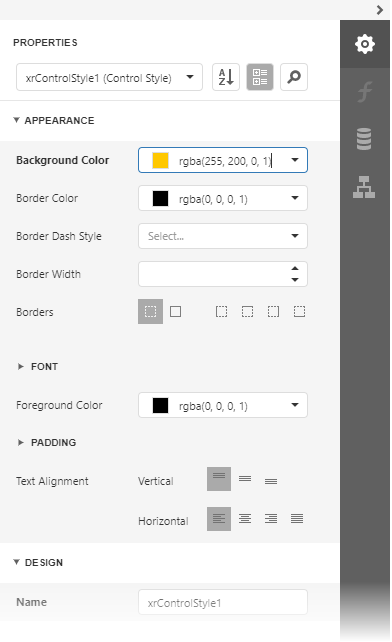
This opens the Properties panel where you can adjust the settings of the selected style. All the report elements apply the updated style immediately.
Style Inheritance
Nested elements inherit their parent element's style if they do not have an applied style.
Override Styles
You can specify a different value for a report element's appearance property to override the corresponding property value in the report element's style.
NOTE
If you apply conditional formatting, its appearance property values have a higher priority than both the individually specified properties and the style's properties.
For more information: DevExpress Styles
Comments
0 comments
Article is closed for comments.