
Page Info & Best Practices
This article will outline how to add page information onto template documents and the best practices when using these.
Best Practices
There are different best practices to keep in mind when adding Page Information into Templates and Reports in Insights.
Insights Page Info
A Page Info element has to go in either two places within Templates & Reports in order to display on every page. This is based on how the client will be interacting with it.
| Location | Usage |
|---|---|
| Bottom Margin |
If a client will need to download and edit a template/report, then the Page Info must go into the Bottom Margin otherwise it will not be displayed in the editor / Word.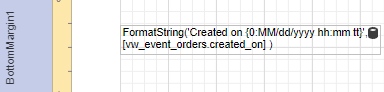
|
| Page Footer |
If a client is only needing to download a template/report as a PDF, then the Page Info can go into the Page Footer.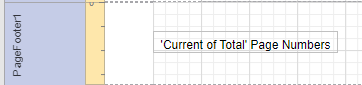
|
Add Page Numbers
To add a new Page Number to a report, drag the Page Info item from the Toolbox and drop it onto the required report band.
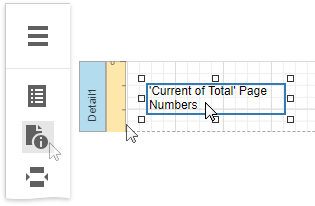
Page Info
The Page Info control is used to display auxiliary information on report pages, such as date, time, page numbers, or user name.
Use the Page Information property to define the kind of information for the Page Info box to display: page numbers, system date-time, or user name.
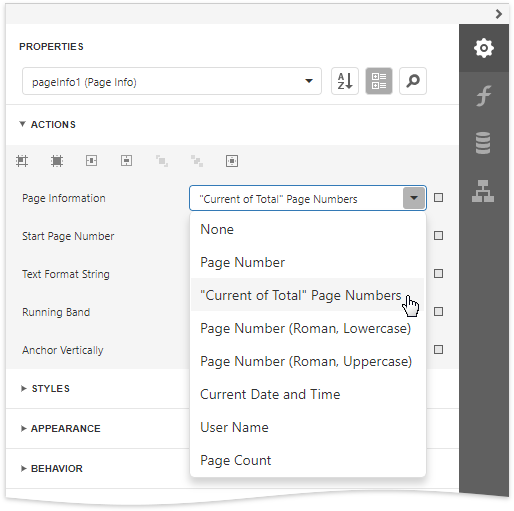
For examples of different uses of this control, see the corresponding tutorials:
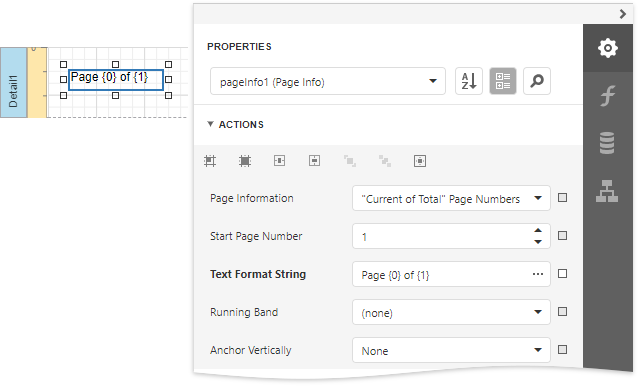
In addition, a format string can be applied to a control's contents. For example, you can change the control's format to Page {0} of {1} using the Text Format String property.
Created On Date
Besides page numbers, you can also display a Created / Generated On Date on every page.
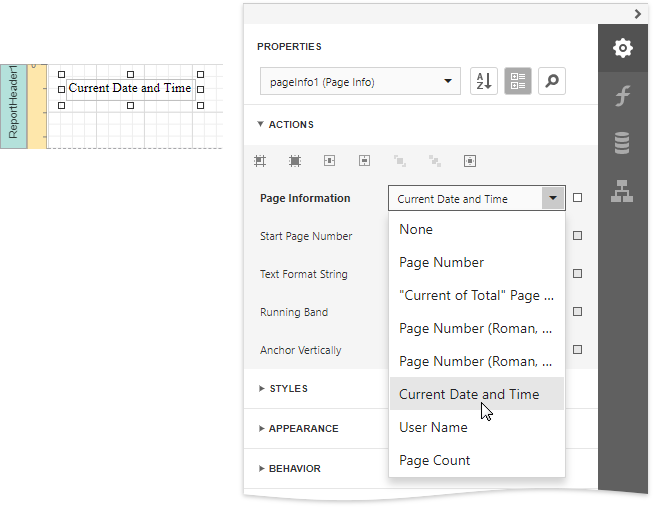
After you drag in the Page Info box, you can either select the "Current Date and Time" option in the Page Information drop-down or create a Format String instead to pull in a data element.
- Setting the Page Information property to Current Date and Time.
- Insert the Format String into the Expression Editor to show the Created / Generated On Date.

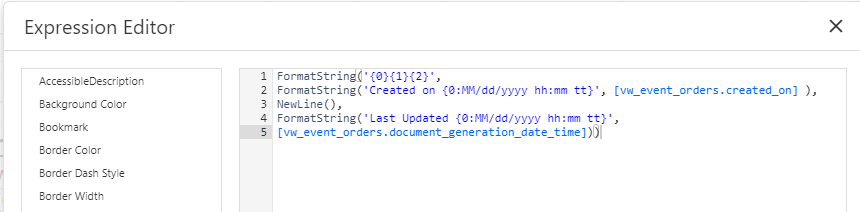
This example is showing both the Created On Date for the Event Order, and the Document Generated On Date with a line in between.
Comments
0 comments
Article is closed for comments.