
Change Report Measurement Units
Most metrics of report elements (element locations, dimensions, and margins) can be expressed in units that correspond to one of the following systems of measurement.
- Imperial system (hundredths of an inch) -This is the default system for a new report.
- Metric system (tenths of a millimeter)
- Screen coordinates (pixels)
To assign a system of measurements to a report, use its Measure Units property. You can specify this property in the Properties panel. If a measurement unit is not selected, the report will not be able to complete any number-based data elements or calculations.
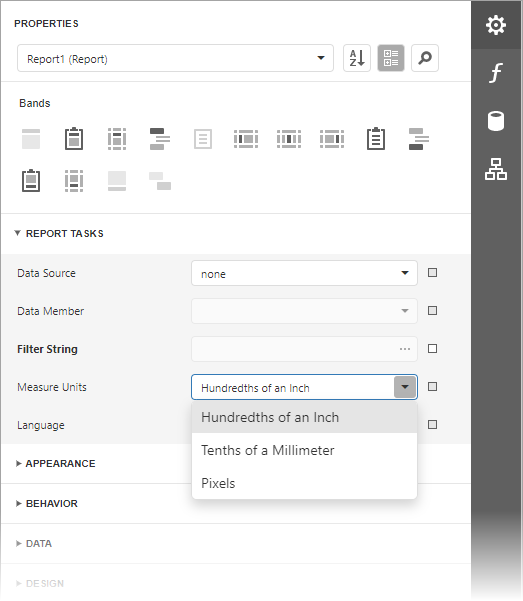
When the system of measurement changes, the Report Designer recalculates property values and updates the layout of all report elements. The system of measurement determines the minimum increment with which an element's location and size can be changed.
Format Data
This document also demonstrates how to specify value formatting for report elements (for instance, format numeric values as a currency or apply a percent format).
After you bound your report to data and specified a bound data field in a report control's Expression property, you can format data values in a report.
- Expand the Table Cell Tasks or Label Tasks category and click the Text Format String property's ellipsis button.
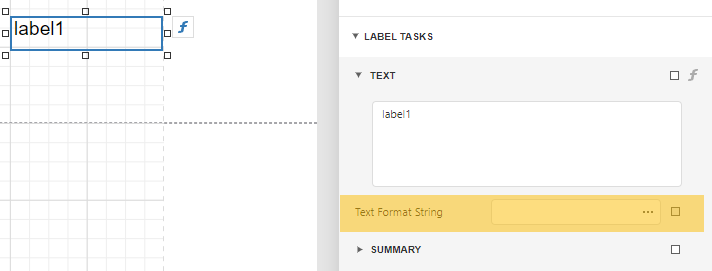
There are two Text Format String shortcuts that you can use in reporting listed below:
- For Date, {0:d} will format any date entry as month / day / year
- For Time, {0:t} will format any time entry as hour : minutes (am/pm)
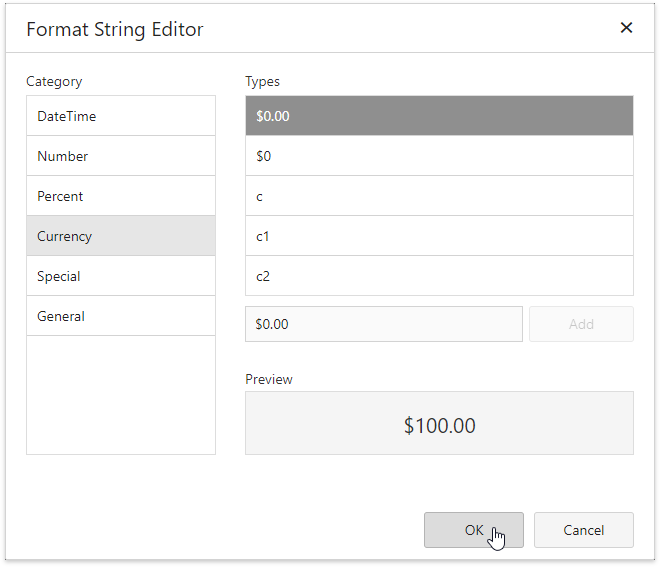
2. This invokes the Format String Editor where you can specify the required format.
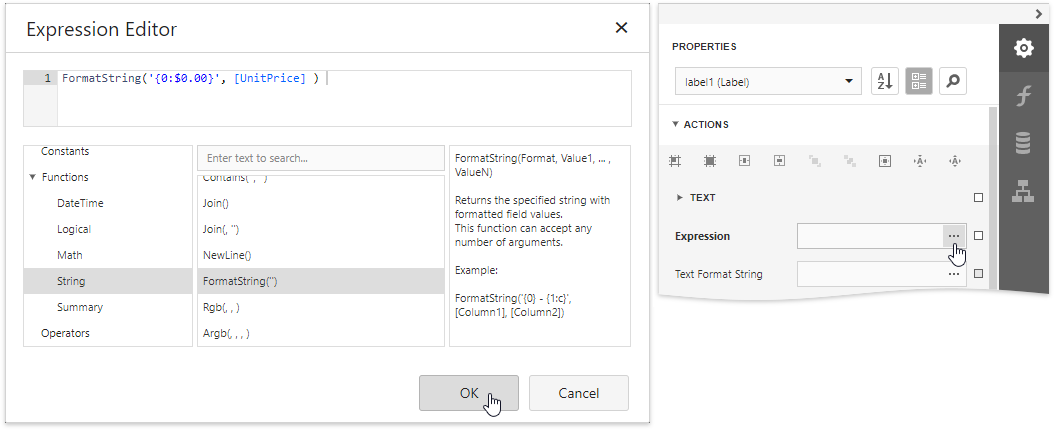
Alternatively, you can use the FormatString function within the expression you specified for the report control.
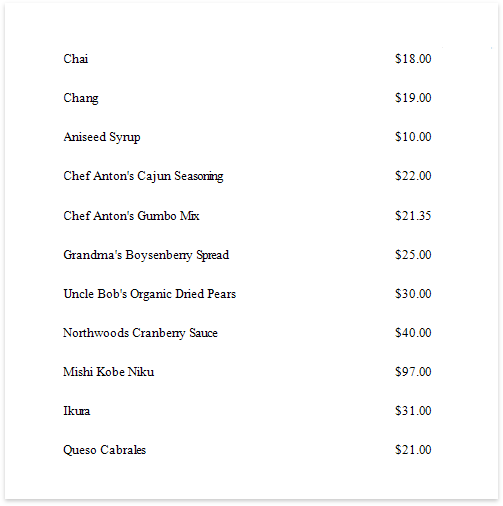
When switching to Print Preview, you can view the report control displaying values with the specified format.
For more information: DevExpress Report Units
Comments
0 comments
Article is closed for comments.