
This article covers both management of holidays and sets, as well as assigning holiday sets to specific accounts. Common holiday sets have been added already, but any new holidays or sets that do not appear on the list will need to be manually added. For example, state specific or city specific holidays would need to be manually added as a new set, and then applied to the respective account. Any holiday sets added through the Support app in a region will be accessible to any venue in that region.
If you add a holiday set or additional holidays to a set (not additional recurrences, but additional holidays) please let the Documentation team know (message Linda) so they can keep the list in Add Holidays to Your Calendar up to date.
Managing Holidays and Holiday Sets
- Log in to EB Access (https://login.venueops.com/rootaccess/) using your EventBooking Google account.
- Go to the Holidays management page using the menu on the left.
- To update an existing set, click the name of the set on the list.
-
Click the Pencil and Paper icon on the top right to see options.
- Change Holidays will allow you to add new holidays to the set or update/remove existing holidays.
- Rename holidays will allow you to rename the set.
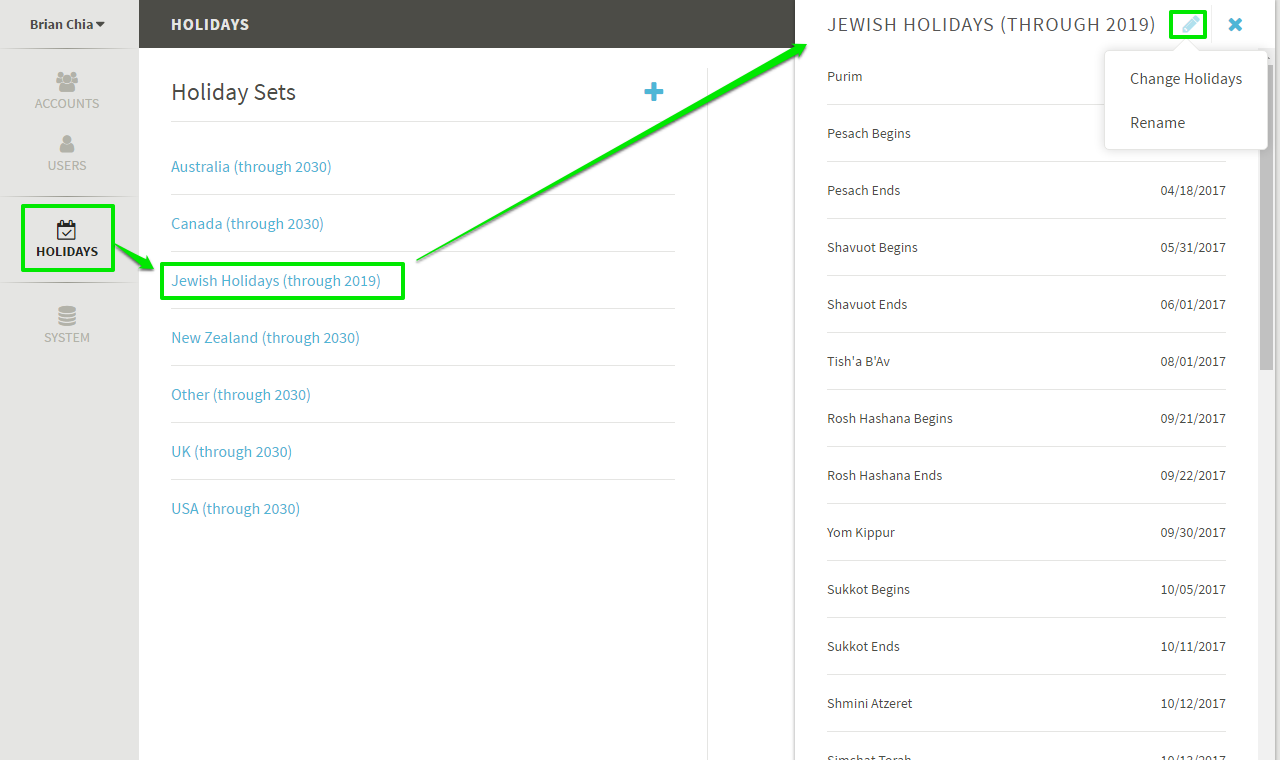
- To add a new Holiday to an existing set, click Change Holidays, then scroll down to the bottom of that set. Click the Plus button to insert a new row. Add the name of the holiday and then input the correct date.
- To edit an existing Holiday, simply find it on the list (arranged chronologically) and change the name and/or date as needed.
- Once a set has been updated, rename the set to indicate, in parentheses, to which year the set runs through. This will help support keep track of which sets need to be updated.
- To create a new Holiday Set, click the PLUS button on the Holiday management page, then give the set a name (including the year range in parentheses) and add holidays using steps 5-7.
Assigning Holiday Sets to an Account
- Log in to EB Access (https://login.venueops.com/ebaccess/) using your EventBooking Google account.
- Find the Account using the Accounts List or the Search box. Click on the name of the account.
- Click on the Gear icon on the top right to enter the Admin section. Customers assigned the Super Admin role can also switch to their Admin panel to access these settings.
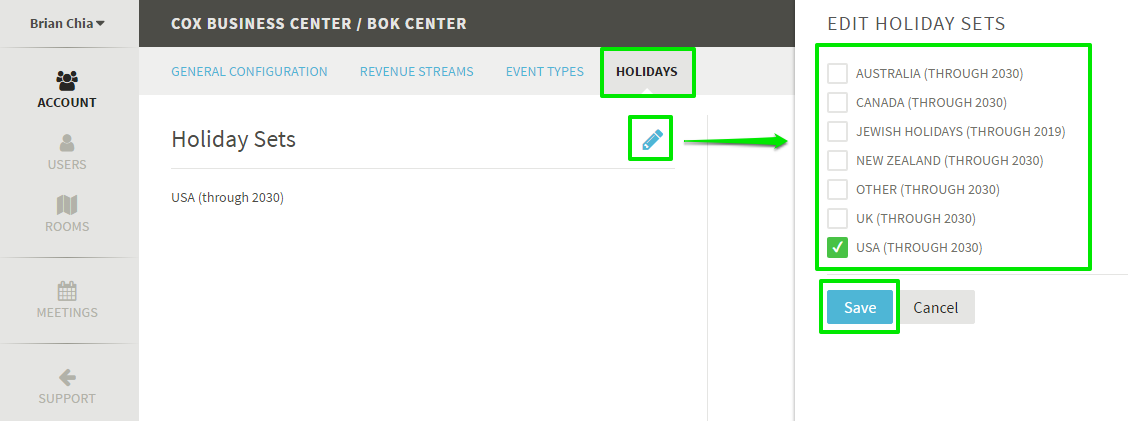
- Find the Holidays tab, which should be the right-most item on the top menu. Click into the Holidays tab.
- Click the Pencil icon to select which Holiday Sets you would like to apply to the account. Click Save when finished.
- Click the Support button (back arrow icon) on the left menu to return to EB Access.
Comments
0 comments
Article is closed for comments.