Smart Import Functions
Answered
Hi team,
I recently ran a demo on Smart Imports with a client (MBS), and they asked whether we have a documented list of fields that Smart Import functions support.
I checked Confluence and the Support Center but wasn’t able to find a definitive or published list.
From my understanding, field availability seems to be dynamic based on the module, import type, and configuration (including UDFs), rather than a fixed list ; and in testing, I was able to successfully import usage and attendance fields.
- Is there an official or internal reference for supported Smart Import fields?
- If there isn’t a formal field list available, what would be the best way to position this to customers?
Appreciate any guidance or clarification here.
Thanks!
-

Seth Halvaksz FYI
-

You just have to delete the data in the field, and then click in the field, in order to see the possible data fields that can be matched.
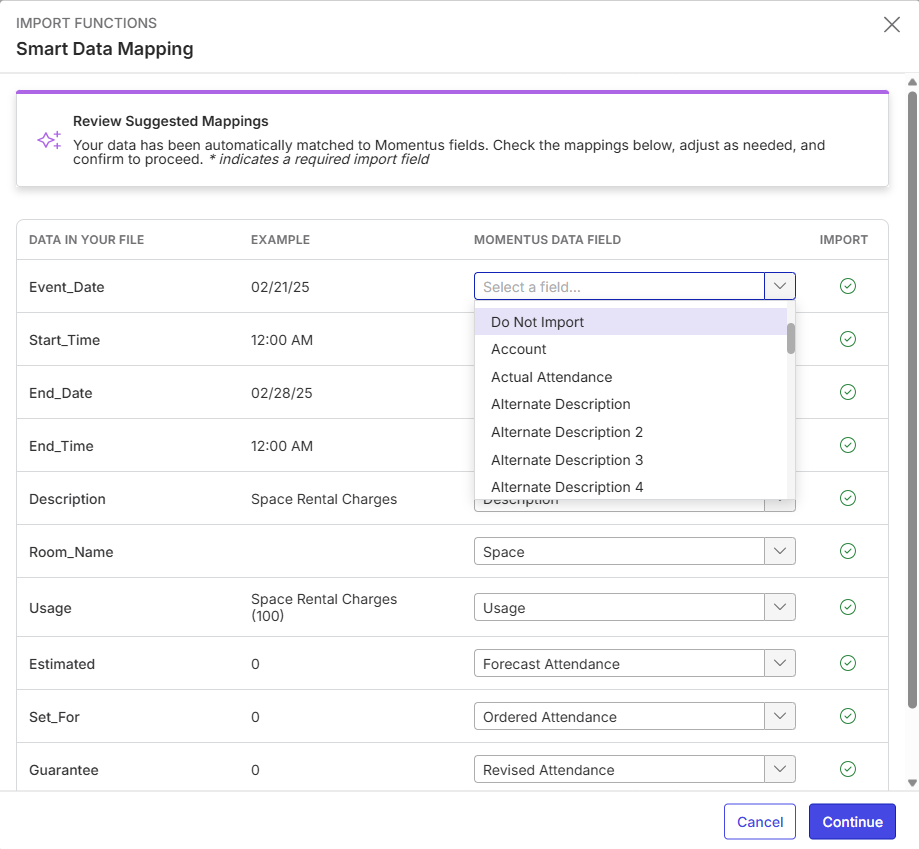
Here are the fields in the dropdown, which we can add to an article for reference:
Account
Actual Attendance
Alternate Description 2
Alternate Description 3
Alternate Description 4
Alternate Description 5
Booking Link
Booth UDFs
Check Registration Conflicts
Class
Contact
Coordinator
Current Sold
Default Payment Schedule
Department
Description
Display Order
Early Deadline
Forecast Attendance
Function G/L Code
Level
Location
Ordered Attendance
Registration
Registration Qualification
Revised Attendance
Search
Session Details
SO Checklist
Space
Standard deadline
Statistics
Status
Sync with Event Attendance
Track
Usage
User Number
User Text
Web Address
-
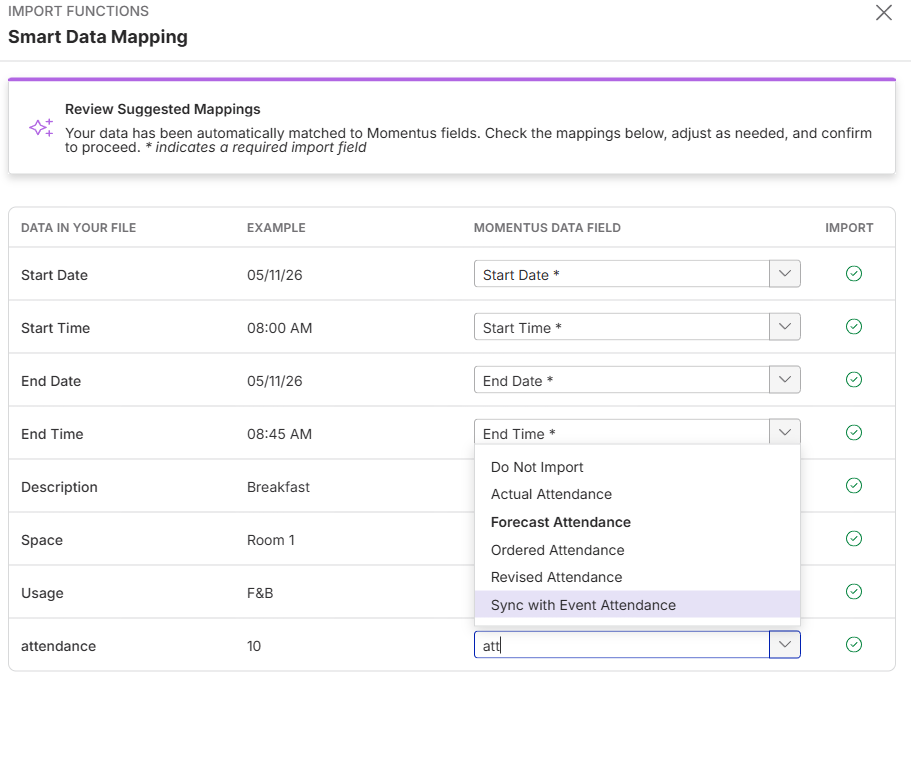
Thanks Seth Halvaksz — MBS has asked whether “Guaranteed Attendance” can be added. It doesn’t appear to be a standard field, so I assume it’s either a renamed field or a UDF created by MBS.
If it’s a renamed field, they may be able to map it to the underlying standard field. If it’s a UDF, can you confirm whether UDFs can be mapped if they’re not available in the dropdown? If not, is there a recommended workaround?
-
Unfortunately, UDFs are not currently supported.
For now, the only option is to use one of the other Attendance fields.
-
Thank you for the clarification. Cheers!
-

https://supportcenter.ungerboeck.com/hc/en-us/articles/36870624518679-Import-Functions-Using-Smart-Import has been updated with these fields.
Please sign in to leave a comment.
Comments
6 comments
Date Votes