🐛 Possible Bug -Font size/type for RFT in instructions
Answered
-
Environment Observed
- Where was the issue observed? NA
- Account Name Theodore Roosevelt Presidential Library
- Account ID account-6483-A
-
Is this a converted account?
- no
-
Issue Scope
- How widespread is the issue? All users
- Event Name TEST Momentus Reception 2025
- Event ID 6483-65-65-1345
-
Was the issue reported by the client?
- No
-
What’s the problem?
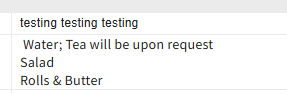
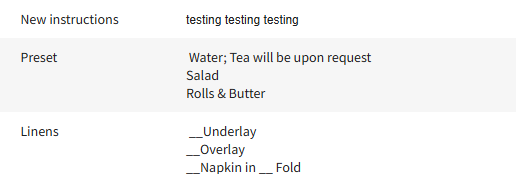
- Font size and style is different for instructions created BEFORE RTF roll out than after.
-
Is the issue reproducible?
- Yes
-
If reproducible, where?
- Demo
-
Demo/Staging/Pitstop Account
- account-815-A
- Demo/Staging/Pitstop Event ID-815-65-65-3362
-
Steps to reproduce the issue
- Log into account
- Go to instruction sets
- See the font size and shape of the instruction set.
- Create a new instruction in the instruction set. Notice the default font size and shape is different than the other that were previously created.
- Go into an event.
- Add an existing instruction set and add an ad hoc instruction AND add a recently modified instruction set. The new instructions have a different font size and style.
- Go to operations view and notice the difference here as well.
-
Expected behavior
- I would expect the default font to be the same as the in app font. Please verify what that font size and style is so that we can match it.
-
Troubleshooting steps already taken
- I've seen this behavior in several accounts. I've tried to reverse search for the default font size and style
-
Workaround identified?
- No-not in app. We can make it look the same in templates.
-
Attachments available?
- Screenshots or videos: Included / Not Available
- Zendesk ticket link (for Support use)
-
-

Hi Amber, this is unfortunately how it had to be implemented for the RTF to carry through with the least friction into Insights. We had a discussion with Kristi and Kevin when working through the challenges and agreed that with the new RTF support for ProseMirror, we would have the default font size set to 9 points for Instructions and 11 pts for Emails.
The Rich Text Editor (ProseMirror) is a plugin tool and it does not follow our system font. The workaround here is for them to go in and “edit” their existing instruction sets so that they are updated to the rich text formatting.
-
In-app default seems to be Source Sans Pro, 14 px
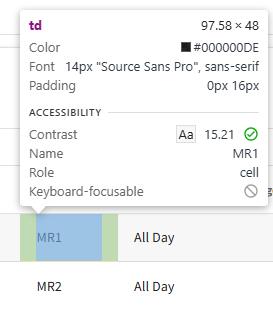
Above is what I get when I inspect the text element for a "normal" text area (not heading, etc.)
And this is the summary engineering provided:
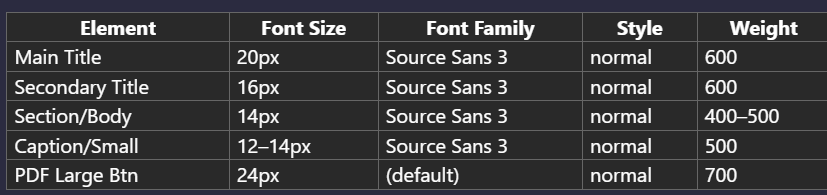
I'd just note, the app is based on pixels, but the RTF editor is based on points, which are not 1:1 conversion
You can use a tool like this to get the converted size: https://pixelsconverter.com/px-to-pt
-
Thanks, @Elizabeth Fox. We've confirmed that Source Sans is currently unavailable in our RTF editor, regardless of font size. I’ll go ahead and submit an enhancement request for this if you can help raise it with Prosemirror. I understand when the client has intentionally set up the RFT in different styles and sizes to call out certain things, however it’s a bit visually disruptive to see multiple instruction styles pulling into the detailing tab as a default.
-
Amber Lough , I just checked and we do have Sans Serif in the editor. Maybe try with that at 10 or 11 pts? Source Sans is the font family, but Sans Serif is the font name.

Please sign in to leave a comment.
Comments
4 comments
Date Votes