How to manage placement of multiple SO items on top of each other on Room Diagram
Refer to Product Ideas
Zendesk Ticket: https://ungerboeck.zendesk.com/agent/tickets/348689
Account: Columbia Metropolitan Convention Center
Region: Amer
Articles used in your research: https://supportcenter.ungerboeck.com/hc/en-us/articles/17130280171287-Create-Service-Orders-from-a-Room-Diagram and https://supportcenter.ungerboeck.com/hc/en-us/articles/17745304410775-Add-and-Manage-Room-Diagram-Layers
General
Business impact if not resolved: Annoyance and extra time used to move items after placement
Short Summary of issue (issue description): When adding items from SO that must be stacked, such as a lectern on a table or a stage - if you add the lectern first and then add the table or stage you can no longer adjust the lectern until you move the table/stage from over top it. is there a way to bring previous items forward? Can layers be used to manage non-permanent items as well?
Macro Vertical: Convention Centers
Debug Environment:
Customer DB Location: Hosted
Database: ColumbiaConv_Prod_0064140254_USI
Server: Debug-US,1433
Version: 25.12025041002
V30 Link: https://supportwebus.ungerboeck.com/ColumbiaConv_Prod/app85.cshtml?ReturnUrl=%2fColumbiaConv_Prod
User Login: ITRocks2014
Recreation Steps:
1. On the room diagram add a tabletop lectern
2. add a table on top of the lectern
3. attempt to adjust the lectern > you can't click it because it is under the table. there is no way to bring it forward or put it on top without moving the table first.
Observed vs. Expected Results: N/A
What does the client want to accomplish: looking for an easier or best practice way to manage items that must be stacked
Attachments:
Attachments or screenshots: see recording: 2025-04-25_13-40-33.mp4
-

Cathy, i was able to get more info here.
First, we do not currently support a “bring to front” feature which sounds like what the customer is requesting. If so that would be an enhancement request.
I'd told that objects in room diagram are not intended to overlap, so we didn't create a stake value for them in the product. We use the order that the object was added, which simplifies the design and improves performance.
More info from engineering:
"In this case, since they want to modify stacked objects individually, they likely need to create a layer for the lectern and a layer for the table. They can then move each object to the respective layer using the properties panel "layer" control. Start with the tables, as they are easily selectable. Once they have them on the new layer they can "lock" that layer, which prevents the selection logic from using objects on that layer. After that they can select the lecterns and move them as needed.
The layer panel also affects the stack order for render. So if one layer needs to be displayed over the top of another layer, it must be higher in the list of layers. They can be moved by selecting one and hitting the arrows. Here is an example.
If I hover over the intersection of these 2 shapes, I always select the oval. So I made 2 layers and moved them to the respective named layer. In this case the rectangle layer is above the oval layer.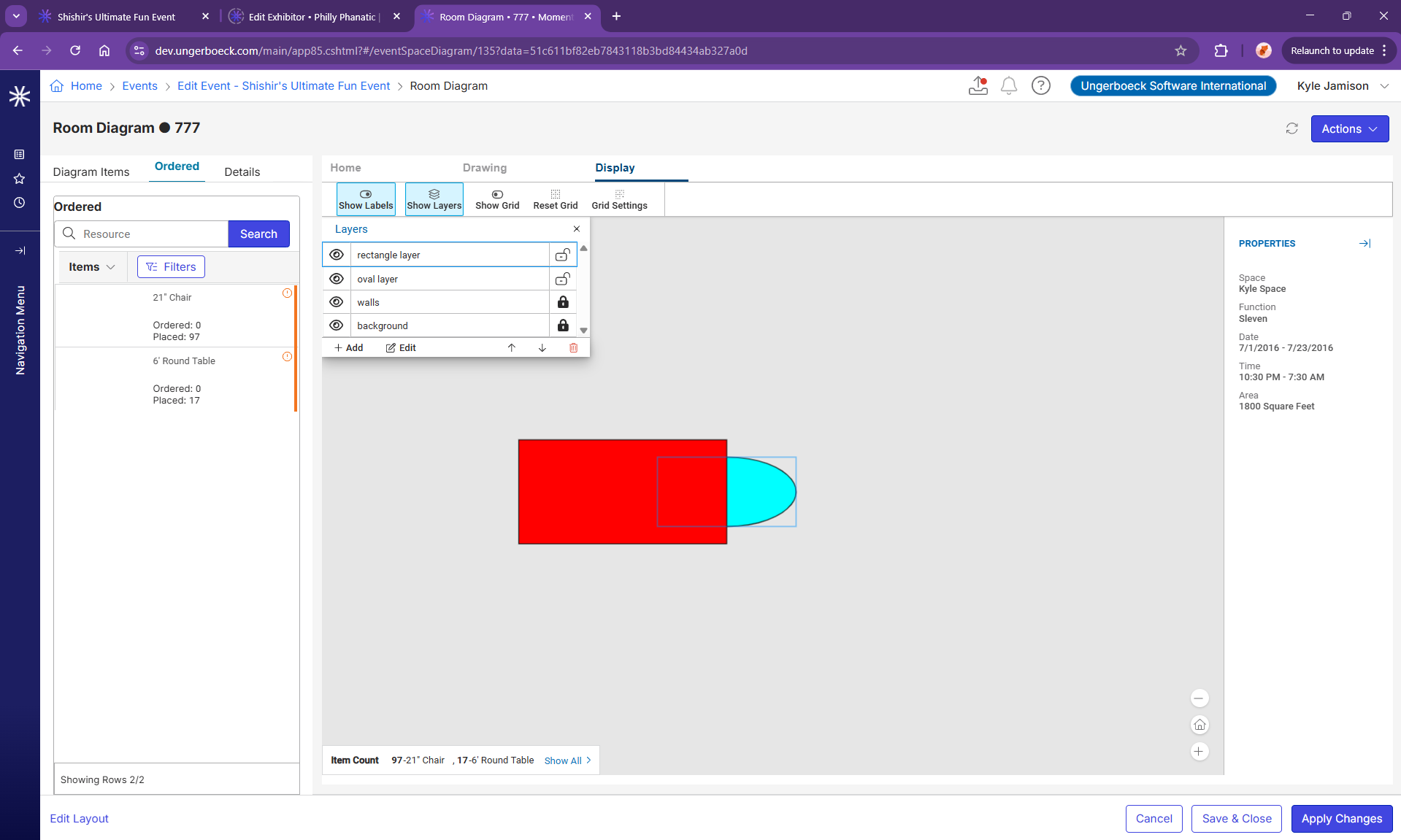
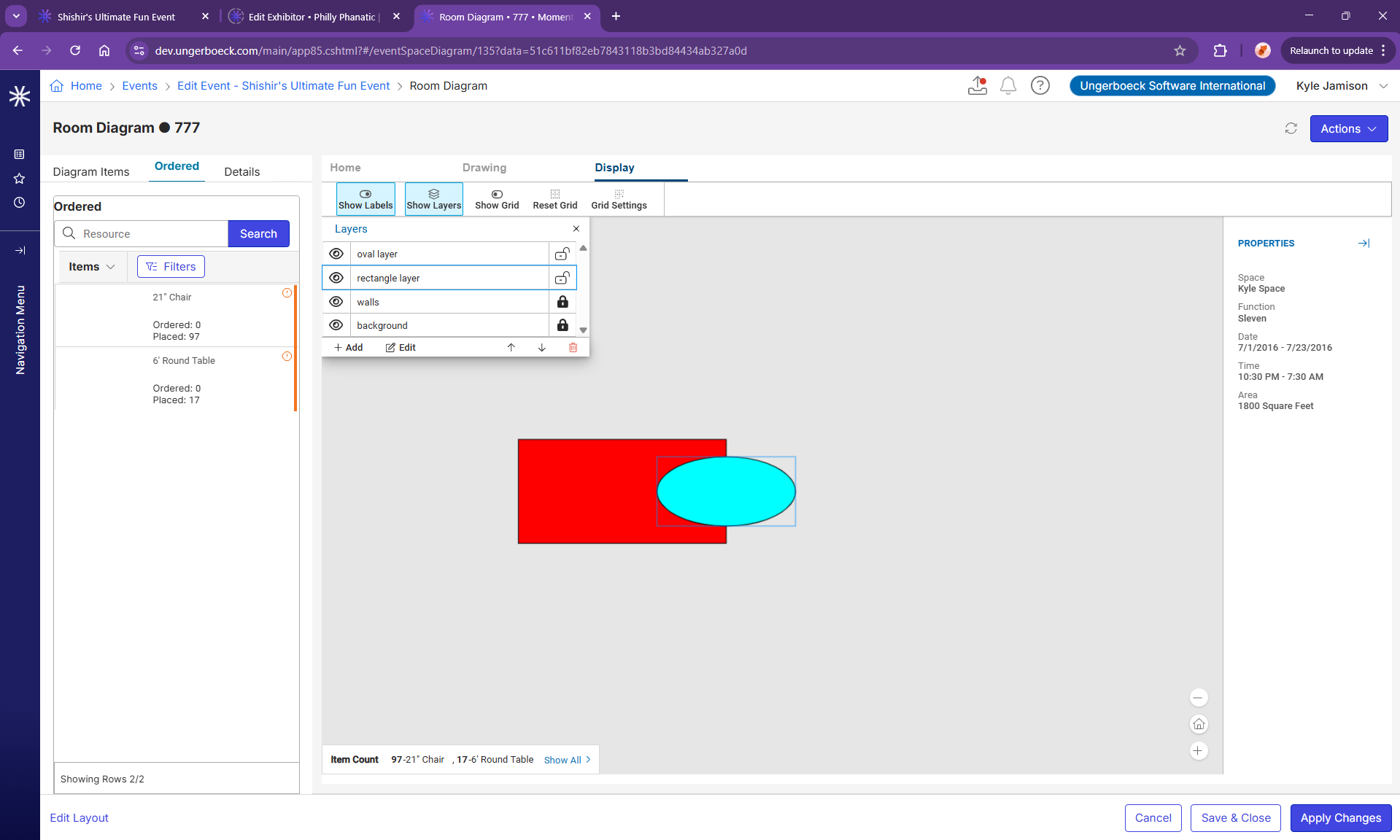
Now I moved the rectangle layer lower, so the oval is on top, but the oval is still always selected instead of the rectangle.
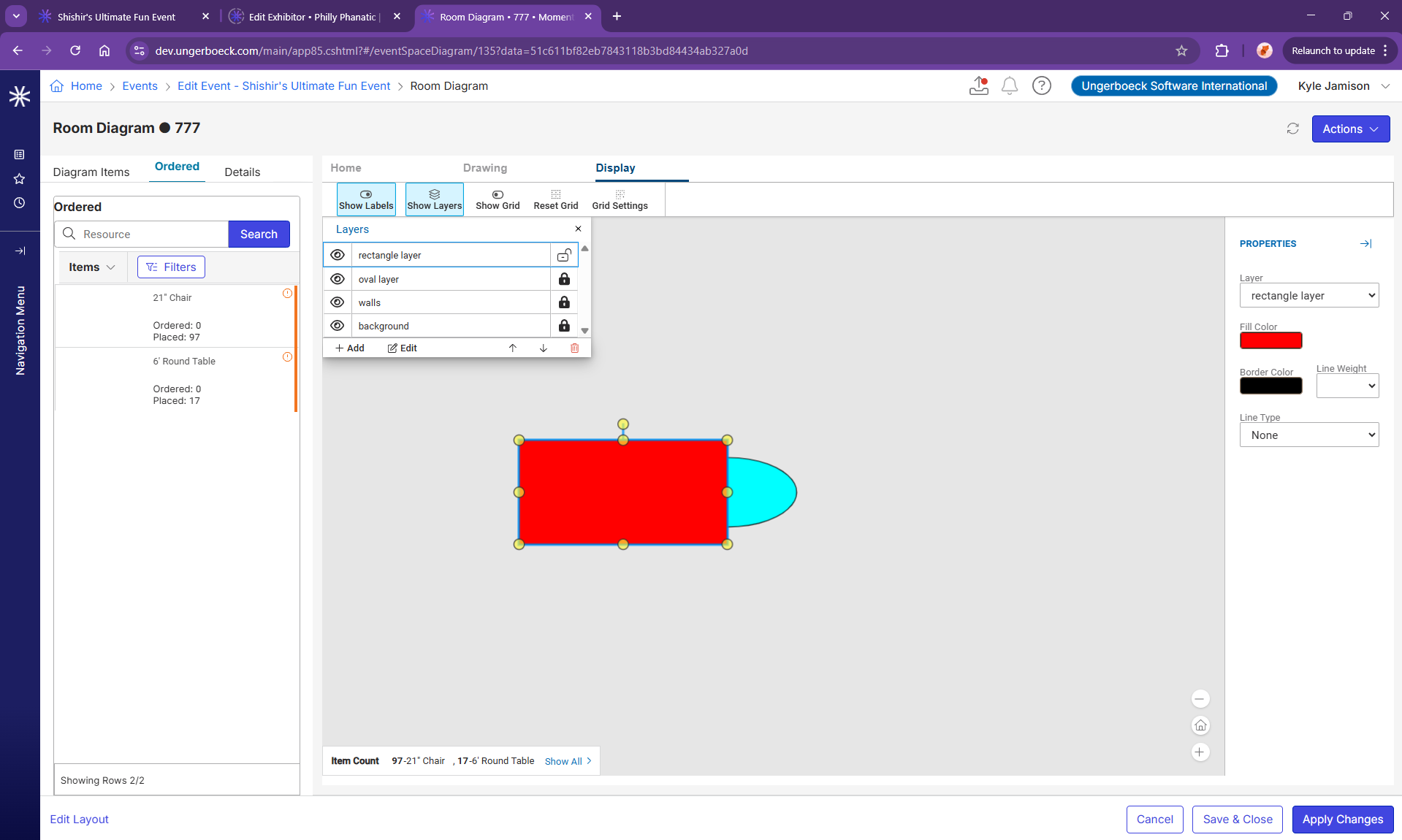
By locking the oval layer, I can select the rectangle, even when I click on the intersection.
Please sign in to leave a comment.
Comments
1 comment
Date Votes