
Elite Prime was developed to create a possible migration path for some (not all) EB Classic clients, who are lightweight users (primarily calendar/holds management) and need a stepping stone to get to Elite or for price-sensitive venues. Venues will be able to start fresh or, for a fee, convert data to their Prime account from Classic. Only data fields visible in Prime will be converted.
Create Tenant:
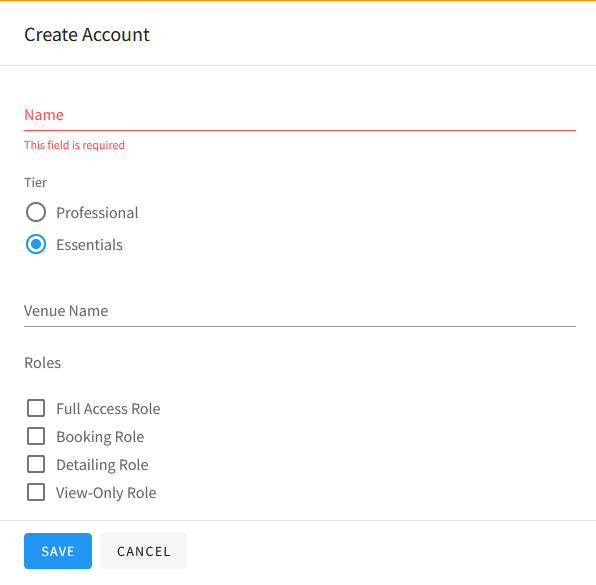
- In Root, click the + to create the tenant:
- Under Tier, Select Prime.
- Create the venue. The correct name will be in the announcement email.
- Prime accounts may only have one venue created in Elite. You should not create an additional venue, even if it done to segment permissions. If they need that functionality, refer them to SCE to discuss an upgrade to professional.
- Select all the standard roles. Prime Sys Admins do not have the ability to create or edit roles.
- Do not edit the standard roles; Prime accounts do not have custom permissions. If they need that functionality, refer them to Account Management to discuss an upgrade to professional.
- Click Save
Classic Conversion Info (if applicable, otherwise skip to next section):
- Complete an account analysis in client's Classic account
- In self-service capsule tool: Click the Prime checkbox and hit Refresh.
- Rename the Venue Name if needed.
- Check all mapping.
- Export Capsule.
- Import Capsule into Sandbox.
- Review Sandbox account for any obvious errors. Correct errors in capsule and re-run if needed.
Configuring Prime Account:
- Activate Live Entertainment and Insights.
- Edit the Timezone and Region.
- Add Holidays.
- Create a System Admin user with the Full Access and System Admin roles. The contact name and email will be in the announcement email.
- Add Standard Reports and Dashboards.
- Send Welcome Email (since client will not receive activation emails from Sandbox, details in KT)
- The client completes the self-guided implementation process as outlined in Getting Started in Elite Prime.
- The Consultant does the final conversion for Data Conversion clients.
Comments
0 comments
Please sign in to leave a comment.