
Sort a Report's Data
Do the following to sort data in your report:
- Create a new or open an existing data-bound report.
You cannot apply sorting unless your report is bound to a data source.
- Switch to the Properties panel and select the Detail band. Navigate to the Table Cell Tasks or Label Tasks category then select the Sort Fields dropdown. You can then add a new sort field by clicking on the " + " button, then select the required data field to sort the report's data by. If you need to add any other sort fields, simply click the " + " button again, or vice versa if you need to delete a sort field click the " - " button.
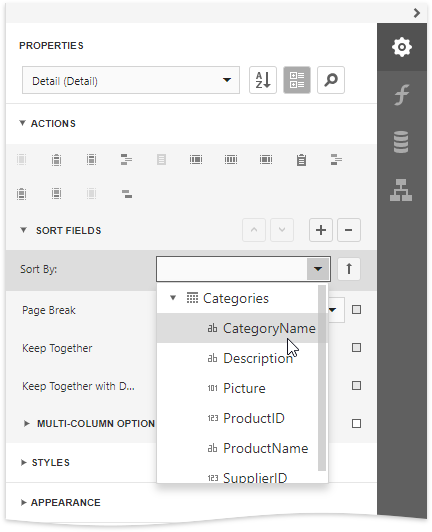
This adds a corresponding sort field to the Sort Fields collection. You can access this collection by expanding the sort field section.
NOTE
See the Sort Data by a Custom Field tutorial to learn how to sort a report's data by a custom field.
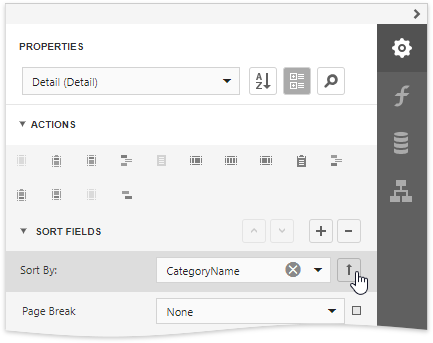
3. Click the up or down buttons to define the sort order within the group (ascending or descending). Use the crossed-out arrows button to disable sorting in grouped data.
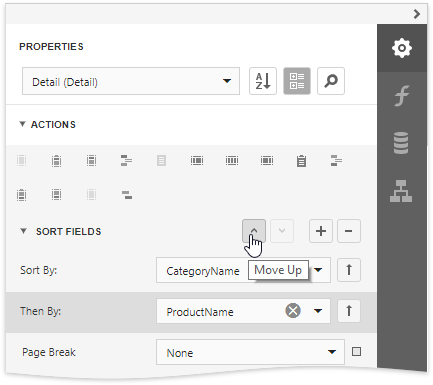
4. When a report has multiple sort fields, you can change its order by clicking Move Up or Move Down.
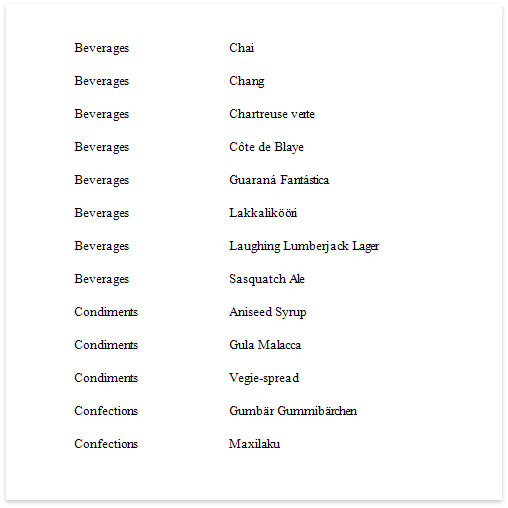
5. Drag the corresponding field from the Field List onto the report area and switch to Print Preview to see the result.
Interactive Sorting in Print Preview
You can allow sorting report data directly in Print Preview by clicking a designated element.
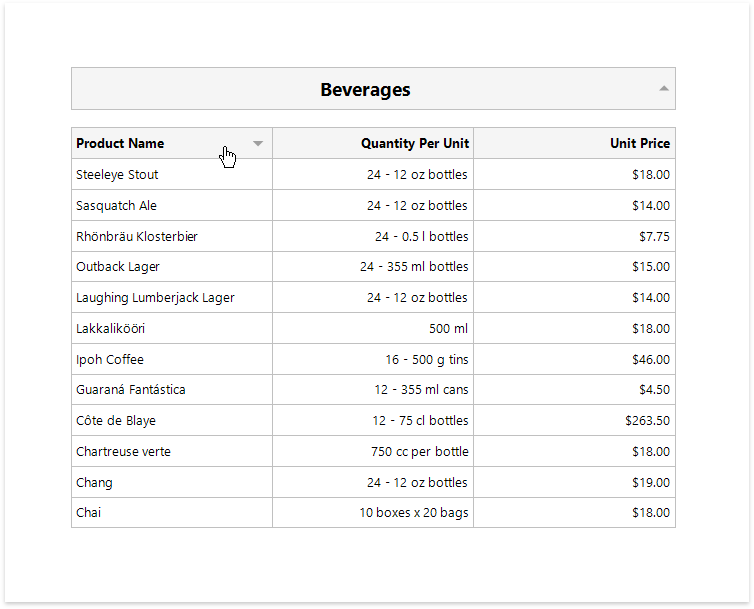
See Sort a Report in Print Preview for more information on this.
For more information: DevExpress Sorting
Comments
0 comments
Article is closed for comments.