Voucher notes not displayed in Open Payables

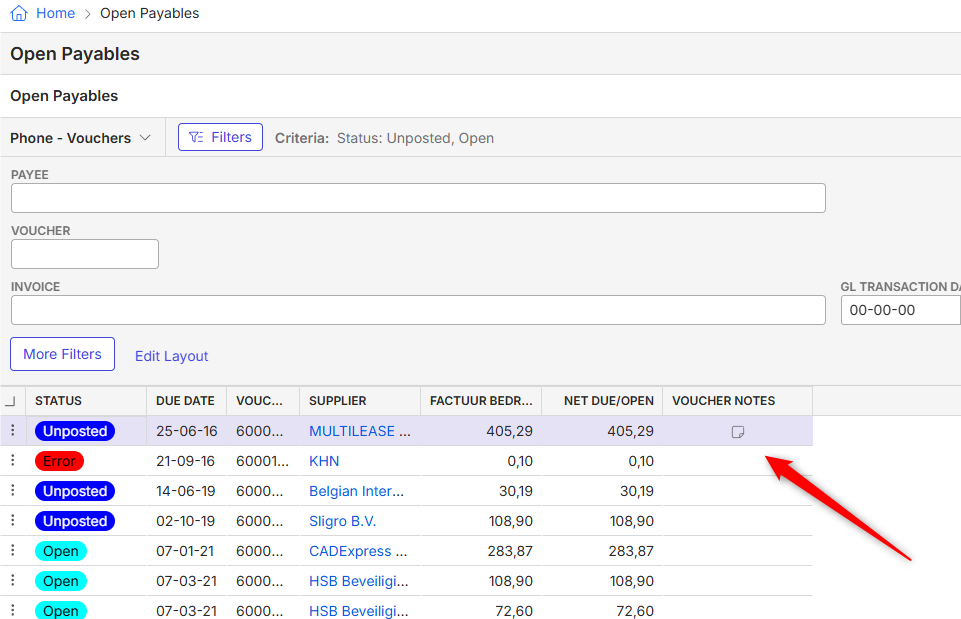
- Description of the issue: Voucher notes are not displayed as text in the Open Payables. An icon is displayed instead.
- Account name: MECC Maastricht BV
- Region: EMEA
- Client version: 26.1
- Steps to reproduce:
- Go to Open payables from Main Menu
- Click on Show Column if Voucher Notes column is not there -
Observed results vs Expected results: If voucher notes are added, it will show an icon, but not the actual note text:
- What is the job the client is trying to accomplish: They want to view the notes directly in the Open Payables window.
- Business impact if not resolved: The user has to check the document of every voucher. Adding in many extra unnecessary clicks.
- Links to articles where you've looked for solutions and also other steps you've taken to research the issue: N/A
- Link to Zendesk ticket: https://ungerboeck.zendesk.com/agent/tickets/393565
- Local v30 URL: https://supportwebemea.ungerboeck.com/MECC
Pieter Fourie Mike Schepker Nicole Loh Satya Ram Nukala Is this the expected behaviour? If there's no way to show the text, would it be an enhancement request?
-
Official comment

I'm generally not opposed to adding notes to grids with limitations on the number of vouchers for which we will load notes (don't load them if more than X rows are displayed).
But that said - would “Next Approver” not be a reasonable way to handle this as well? -

Seth Halvaksz should we log this as an enhancement? since the customer would like to see the actual note rather than an icon.
-

Josiane Mikhael putting actual notes in the grid causes a big performance impact. We do not recommend it. I just mentioned this in the 2026.2 webinar.
What is the business goal the customer is trying to accomplish? What would they do with the information provided in the note? Based on knowing this, we can discuss if there's a better solution.
-
Seth Halvaksz The customer shared additional info about their business goal:
As requested by you, I want to clarify why we want the notes shown in our VA approval view. Or another workaround.We receive an invoice per deparment. For example Event A is assigned to Project Manager A. An invoice has been sent by "Example supplier" without the event mentioned. Then Project Manager B opens the invoice and sees it is not an invoice that should be checked by them. The same goes for Project Manager C, Project Manager D, Project Manager E. The invoice was meant for Project Manager A. It would be easy for us if the first person who sees the invoice can add a note "It is for Project Manager A" so that not all PM'ers have to open the invoice. It saves a lot of clicks.
Hope this clarifies. And looking forward to your response.
-
Ryan Ungerboeck can you review the use case in the last comment? This does not seem like notes are the best way to accomplish this goal.
-
Thank you, Ryan Ungerboeck !
I haven't found any documentation about “Next Approver” to be shared with the customer.Would it be fine to share what CoPilot wrote?
Overview of "Next Approver" Features- The "Next Approver" functionality is part of the Enterprise approval workflows, designed to automate and streamline manual approval processes within Momentus Enterprise. This feature allows organizations to set up sequential approval steps for contracts, service orders, or other business processes, ensuring that each item is reviewed and approved by the appropriate person or role before proceeding. [Enterprise...oadmap.pdf | PDF]
Key Features
- Automated Approval Routing: Items requiring approval are automatically routed to the designated "next approver" based on pre-configured workflow rules.
- Role-Based Access: Approvers are assigned based on their role, department, or custom criteria, ensuring only authorized users can approve specific items.
- Change Tracking: The system tracks who approved each step and when, providing a clear audit trail for compliance and transparency.
- Notifications & Reminders: Approvers receive targeted notifications and reminders to review pending items, reducing bottlenecks and manual follow-ups.
- Configurable Workflows: Administrators can define multi-step approval processes, including conditional logic for different scenarios (e.g., dollar thresholds, event types).
Typical Use Cases
- Contract Approvals: Ensuring contracts are reviewed by legal, finance, and operations in sequence before finalization.
- Service Order Approvals: Routing service orders through department heads for validation before execution.
- Expense Reports: Automating the approval of employee expense reports, with escalation to higher management if needed.
- Purchasing Requests: Sequential approval of purchase orders based on value or category.
How to Use "Next Approver" in Enterprise
-
Configure Approval Workflow:
- Navigate to the workflow builder or approval settings in Enterprise.
- Define the steps and assign roles for each approval stage.
-
Submit Item for Approval:
- When a user submits a contract, order, or request, the system automatically identifies the "next approver" based on the workflow.
-
Approve or Reject:
- The designated approver receives a notification and can review, approve, or reject the item directly within Enterprise.
-
Track Progress:
- All actions are logged, and users can view the status and history of approvals.
-
Escalation & Reminders:
- If an approver does not act within a set timeframe, the system can escalate to another approver or send reminders.
Value Proposition
- Efficiency: Reduces manual handoffs and speeds up approval cycles.
- Transparency: Provides a clear audit trail for compliance and reporting.
- Scalability: Supports complex, multi-step workflows for organizations of any size.
- Integration: Works seamlessly with other Enterprise modules (contracts, service orders, purchasing).
-
That looks like overkill and is mixing topics and probably hallucinating a bit.
Next Approver is used on purchase orders / requisitions / and vouchers if desirable to explicitly indicate the next user responsible for approving the item.
For purchase orders and requisitions - a GetNextApprover webhook is also available for this to be set via custom logic if desirable. Otherwise the system will use the configured approval levels to determine a list of users available for approving the item.
Please sign in to leave a comment.
Comments
7 comments
Date Votes