Floorplan / Adding Shapes not possible with white outline
Refer to Support
Description of the Issue:
The clients (two reported this) are usually using Shapes in the Floorplan to hide not used areas and until the upgrade to 25.2 they could set the borders of the shapes to be white which of course looks better.
The Border Color can be set to white but once the shape gets placed this will jump back to black. While testing I realized that this works with the white border color when you drag the shape over empty spots but as soon as they cover something the black border comes back. Also in my testing I received an “Overlap” Warning from the system. When I checked it on the clients DB this warning did not appear.
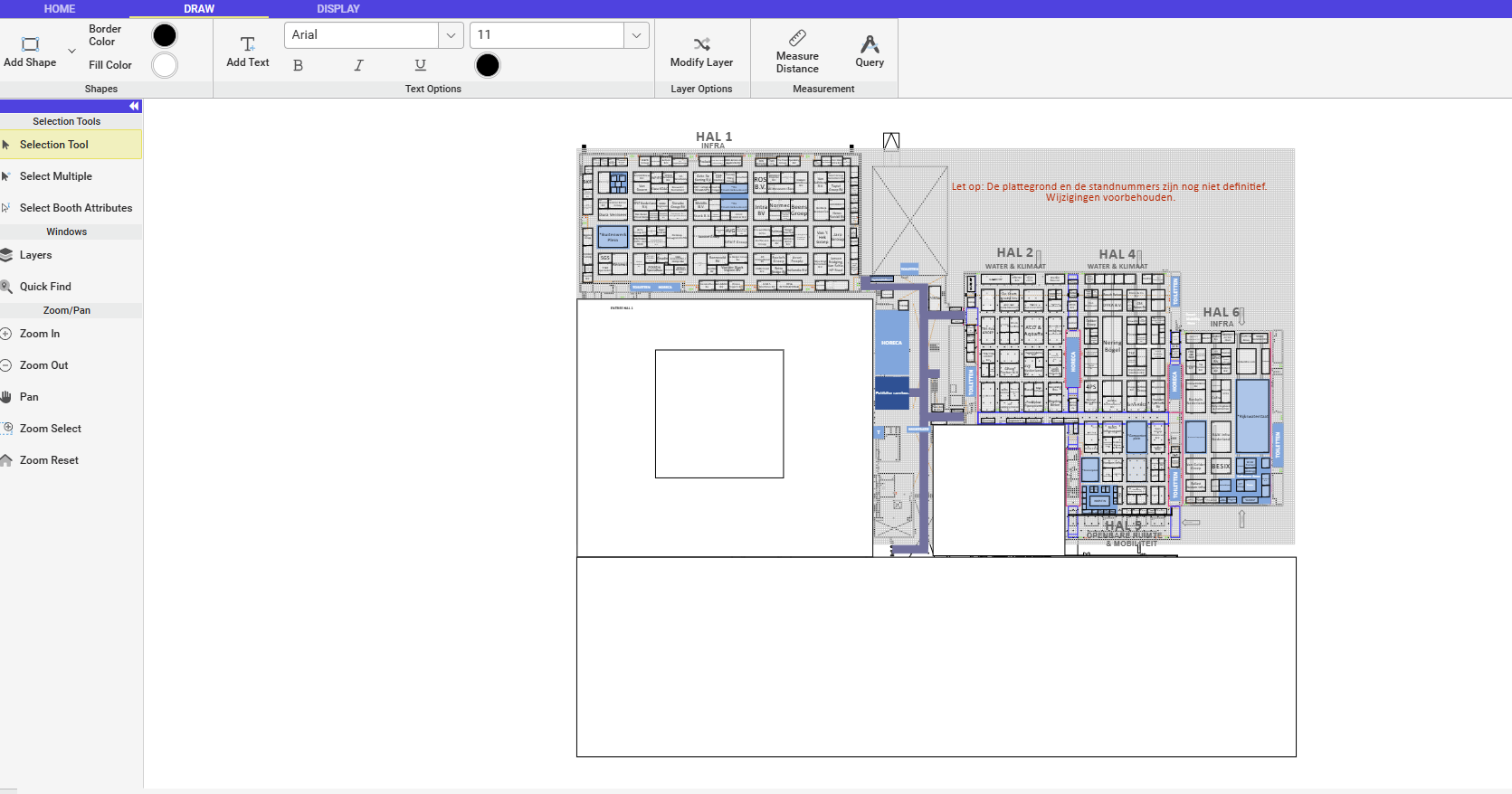
What is the intended behaviour here?
Account Names:
Ahoy_PROD_0977304996
InterCongress_PROD_0985683652
Client Version:
25.32025101301 & 25.22025102001
-

AI's Answer:
Here’s what I found regarding your reported issues in Momentus Enterprise version 25.2:- Floorplan Shape Border Color Reverting to Black:
- In Enterprise 25.2, setting a shape’s border color to white in the Floorplan module currently reverts to black after placement, especially when the shape overlaps other areas. This appears to be a system behavior related to how color values or default border settings are handled in the Exhibitor Floor Plan (EFP) functionality.
- There is no documented user-level workaround or configuration fix at this time. The recommended next step is to document the issue and escalate it to engineering for further investigation, as this may require a bug fix.
- Overlap Warning Discrepancy (Testing vs. Client Database):
- The “Overlap” warning appears in testing but not in the client’s production database. This is likely due to differences in environment configuration or feature flags between test and production systems.
- Documentation suggests validating configuration and feature flags in both environments. If the issue cannot be reproduced locally or the warning is expected but not appearing in production, escalation to Tier 2 or Tier 3 support is recommended for deeper troubleshooting and possible engineering intervention.
-
Seth Halvaksz could you give a Feedback if this is something we could create a Jira for.
I can recreate it and I have at least two clients complaining about it as they usually work with those shapes. -

Dominik Obelöer I assume this is Exhibitor Floor Plan. Has this worked in previous versions?
I would like to hear from a tier 3 on this - tagging Mike Schepker and Pieter Fourie
-

Morning Seth Halvaksz - this should still be doable, yes - they've been using shapes in their floorplans, like this, for quite some time. It is still working “correctly” on previous versions though - on later 25.2 & 25.3, it's not. I will look into this a bit more, but agree that this should be an official case.
-
Confirmed that this is a bug. Please submit a ticket and add it here for future reference.
From engineering:
"25.2 is when we brought EFP into NewUI and the color picker was a major pain in this process. I know I didn't test this specific scenario of an all white box so I can imagine the other testers on our team didn't either.
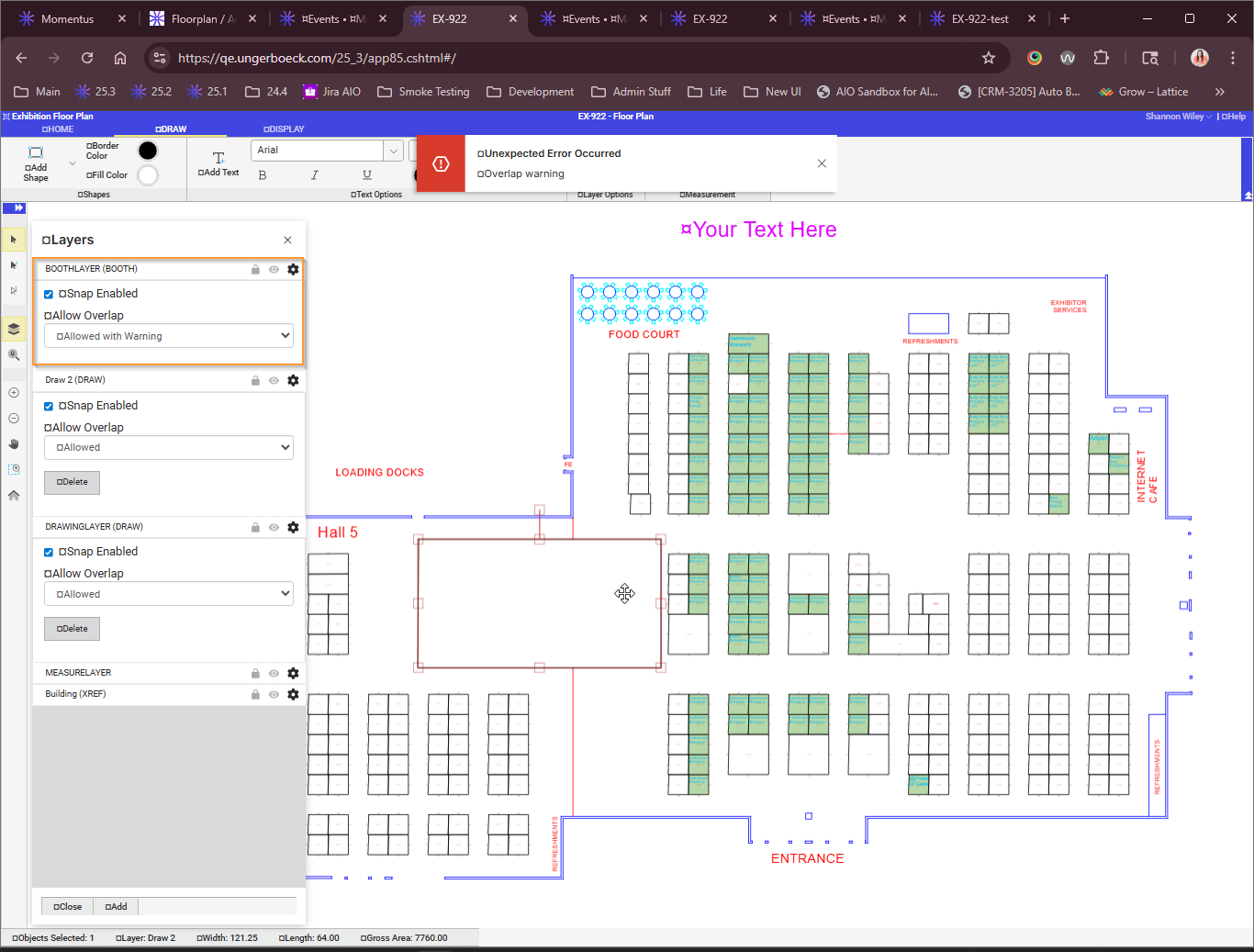
The overlap warning is almost guaranteed a configuration difference between what he's testing and the customer's site. This is set on the layers panel. "
-
Comments from engineering on ME-7196:
This is not a true regression, as the previous color picker was not using true “white” (#FFFFFF), but a slight off white (#FFFFFE) in order to avoid this confusion. With the new color picker we lost the ability to customize the palate colors in EFP and simply use the defaults. The swap from true white to black for border color is a feature that we support in order to mimic what AutoCAD does. It is intentional and desired.
There are multiple workarounds to do what the customers need, without a code fix.
1. I would first suggest putting objects and booths that you do not want to be seen on a layer and hiding the layer. This is not only the intended way to hide objects, but also improves loading time and performance by not loading them into memory on startup. This should be our response to their workflow.
2. If for some reason that wont work, we can suggest they set the color to fully transparent. The second slider on the color picker is the transparency and sliding it all the way to the left will make it no longer visible. This works with any color, not just white.
3. If they wish to keep using white, then they can manually set the white to be slightly off true white by modifying the color code manually. For the new color picker we use Hex codes in the format #RRGGBBAA. So red, green, blue, and alpha which is transparency. To make white it would be #FFFFFFFF, where off white would be #FFFFFEFF.
Please sign in to leave a comment.
Comments
7 comments
Date Votes